Geen Ondersteunende App voor Deze NFC-tag: How to Fix It on Android
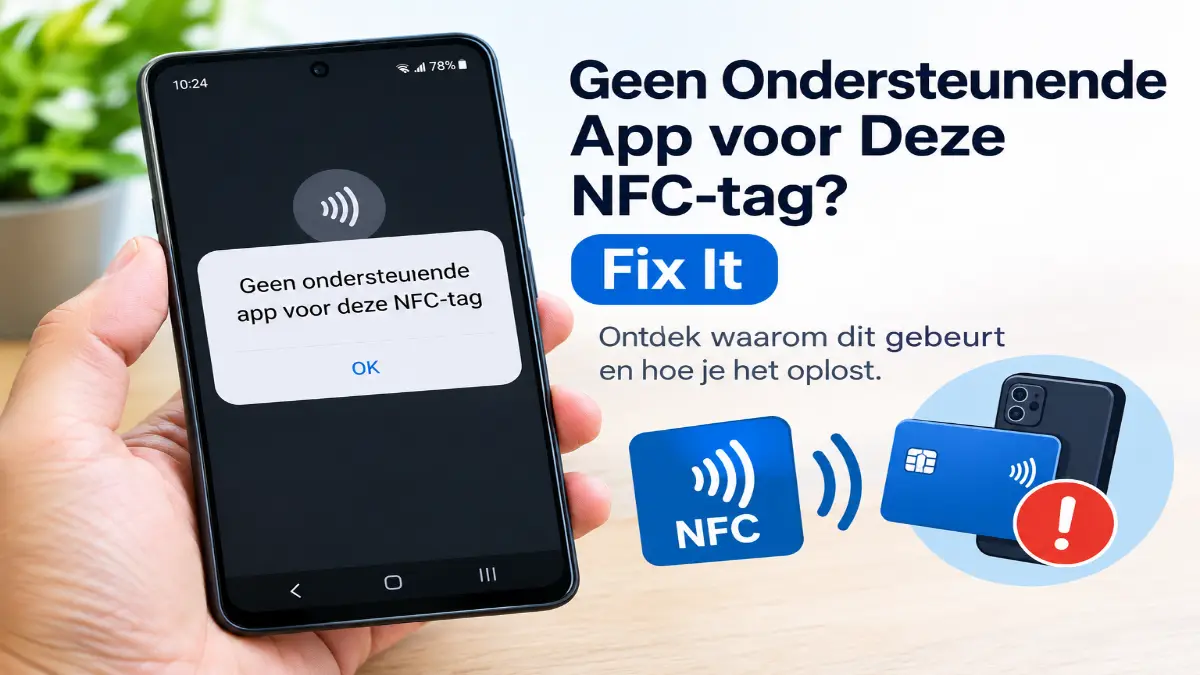
Have you seen the message “Geen ondersteunende app voor deze NFC-tag” on your Android phone? This notification can appear suddenly, even when you are not trying to scan anything.
The message is in Dutch and means “No supported app for this NFC tag.” It usually appears when your phone detects a nearby NFC tag but cannot find an app that can handle it.
In many cases, the cause is quite simple. This notification might appear due to factors such as a bank card kept inside your phone case, an unsupported NFC tag, or the absence of a necessary app. Often, you can resolve this issue without needing to visit a repair shop or reset your phone.
Here is what you need to know and what you can do to stop the message.
What Does “Geen Ondersteunende App voor Deze NFC-tag” Mean?
NFC stands for Near Field Communication. It allows compatible devices to exchange information when they are close to each other. The phone is used for making contactless payments, reading smart tags, and interacting with certain specific cards and devices.
When your phone detects an NFC tag, it checks whether it can read the information and whether an installed app can process it. If no suitable app is available, Android may display the message “Geen ondersteunende app voor deze NFC-tag.”
How Does It Work?
Clearly, NFC (Near Field Communication) is a short-range wireless technology that allows devices to exchange small packets of data when placed close together (usually within 4 cm).
You interact with NFC chips daily in:
- Smart posters and product packaging
- Office building entry cards and hotel room keys
- Public transit cards (metro, bus, or train)
- Contactless credit/debit cards
- Programmable NFC stickers (used to automate Wi-Fi connections or open websites)
When your phone scans a tag, it looks for data formatted in NDEF (NFC Data Exchange Format). If the tag contains a URL, your browser should open. If it contains contact info, your contacts app should prompt you to save it. If the tag is blank, locked, or uses a proprietary format, your phone throws the “no supported application” error.
Why Does “Geen Ondersteunende App voor Deze NFC-tag” Appear?
The message “Geen ondersteunende app voor deze NFC-tag” appears when your Android phone successfully detects an NFC chip, but cannot find a compatible, installed app to process its data. Importantly, this rarely means your phone’s hardware is faulty.
nstead, it is usually triggered by one of these five common scenarios:
- Phantom scanning from nearby cards: A contactless bank card, transit pass, or office key fob resting inside your phone case or wallet is accidentally triggering the NFC reader in the background.
- Unsupported tag formats: Your phone detects the chip, but the data is stored in a proprietary or encrypted format (rather than the standard NDEF format) that Android doesn’t know how to open.
- Missing companion apps: Certain smart tags (like those for specific smart home devices, ticketing systems, or gaming accessories) require their official, dedicated app to be installed to function.
- Blank or corrupted tags: A brand-new, unprogrammed NFC sticker, or a tag that has been physically damaged or improperly written to, will trigger this error because there is no valid data to read.
- Temporary software glitches: An outdated operating system or a minor background process hang can temporarily disrupt how your phone’s NFC controller communicates with tags.
Expert Tip: If you are programming your own tags, ensure that you use widely compatible chips such as the NTAG213 or NTAG215. Older or cheaper Mifare Classic tags often trigger compatibility warnings on modern Android devices.
How to Identify the Exact Cause: Start by removing all contactless cards and key fobs from your phone case and immediate vicinity. If the pop-up stops, a nearby object was the culprit. If the message only appears when you intentionally tap a specific tag, the issue lies with that tag’s formatting, or you simply need to download the manufacturer’s recommended app.
How to Fix “Geen Ondersteunende App voor Deze NFC-tag”
Try these solutions in order. You do not need to perform every step if the first one solves the problem.
Fix 1: Remove Contactless Cards From Your Phone Case
Before changing any phone settings, check for the most common cause. Modern NFC readers are so sensitive that they can even read through thin phone cases.
- Remove all credit/debit cards, transit passes, and building access fobs from your phone case or wallet.
- Keep your phone away from other NFC-enabled devices for a few minutes.
- Use your phone normally. If the notification stops, a nearby card was accidentally triggering the scanner. No further action is needed.
Fix 2: Turn Off NFC
If you do not use NFC for contactless payments (such as Google Wallet) or for scanning tags, the most effective way to stop the pop-ups is to turn off this feature.
- Open Settings on your Android phone.
- Tap the search icon at the top and type NFC.
- Tap the NFC settings result and switch the toggle to Off.
- Samsung: Settings > Connections > NFC and contactless payments
- Pixel/Stock Android: Settings > Connected devices > Connection preferences > NFC
- Fairphone: Settings > Connected devices > Connection preferences > NFC
- Test your phone. You can always re-enable this feature later when you need to make a payment or scan a legitimate tag.
Fix 3: Restart Your Android Phone
A restart can resolve temporary software problems for this issue.
- Save any unfinished work.
- Restart your phone using the power menu.
- Wait for the phone to start completely.
- Check whether the notification appears again.
If the problem was caused by a temporary software issue, this may be enough to resolve it.
Fix 4: Check Your NFC Reader App
If you are trying to scan a tag, make sure you have an application that supports it.
You can look for a reputable NFC reader, such as NFC Tools, on Google Play. These applications can help read compatible tags and identify information such as text or website links.
However, installing a reader will not automatically solve every NFC problem. Some tags require a specific application or use formats that ordinary readers cannot access.
Only install apps from trusted sources.
Fix 5: Update Your Phone’s Software
If the message continues, check for available updates.
On a Samsung Galaxy phone:
- Open Settings.
- Select Software update.
- Check for available updates.
- Install an update if one is offered.
- Restart your phone and test NFC again.
On other Android phones, look for the system update option in Settings. You should also update the application you use to read the tag, if applicable.
Fix 6: Test Another NFC Tag
If the message appears only when you scan one particular tag, the tag itself may be incompatible or faulty.
If possible, test another NFC tag that you know is compatible with your phone.
- If the second tag works, the original tag may be the problem.
- If neither tag works, check your phone’s NFC settings and software.
- If you are using a specialised access or payment card, contact the organisation that issued it for support.
This easy test can help you narrow down the cause without resetting your phone.
7. Write New Data to the Tag (If You Own It)
If this is a personal programmable sticker, use an app like NFC Tools to write a standard NDEF record to it, such as a website URL or a Wi-Fi network configuration. Warning: Formatting or rewriting a tag will permanently erase its existing data.
How to Stop the NFC Notification on Samsung Galaxy
If you are a Samsung Galaxy user, you can easily stop the NFC Notification on Samsung Galaxy.
- First, remove any contactless cards from the phone case.
- Then open Settings > Connections > NFC and contactless payments, if that option is available on your device.
- Turn NFC off temporarily. If the notification stops, something nearby was probably triggering the NFC detection.
- If you need NFC for payments, switch it back on and keep contactless cards away from the back of your phone.
- If the notification continues even when no cards or tags are nearby, restart the device and install available updates. You can also use Samsung’s official support resources for help with your specific model.
Is “Geen Ondersteunende App voor Deze NFC-tag” a virus?
No, this message alone is not proof that there is a virus on your phone. Generally, this means that your phone has detected an NFC tag but could not find a suitable way to process it.
However, be cautious when scanning unknown tags. Some NFC tags may contain links to websites, and these websites might not be secure. Always check the address of a link before opening it. Do not enter your banking password, verification code, or any other sensitive information on an unfamiliar website.
If you notice any other unusual activity on your phone, investigate that activity separately rather than assuming that the NFC message provides the full explanation.
Is This Error a Security Risk?
Generally, no. This message is a harmless system notification indicating a lack of compatible software, not a malware infection.
However, always practice good digital hygiene:
- Do not repeatedly scan unknown NFC tags in public places.
- Never enter passwords, OTPs, or banking details on websites opened via an unknown tag.
- Do not download any apps if prompted to do so via an unknown tag.
Android and iPhone Difference
| Point | Android | iPhone |
|---|---|---|
| Common message | “No supported application for this NFC tag” | The tag may not open or may show no action |
| Background scanning | Can detect tags automatically when NFC is on | Usually needs a deliberate scan |
| Main cause | Blank tag, unsupported format, or no matching app | Unsupported tag type or no matching action |
| Quick fix | Turn off NFC, remove nearby cards, use an NFC reader app | Use the built-in reader or a supported app |
Frequently Asked Questions (FAQs)
What does “Geen ondersteunende app voor deze NFC-tag” mean in English?
This means “There is no supported app for this NFC tag.” This message appears when your Android phone detects an NFC tag but cannot find an appropriate app or action to process it.
Why does the message appear when I am not scanning anything?
Your phone might be detecting a contactless bank card, transport pass, or some other NFC tag near its antenna. This can happen if such an item is kept inside your phone case.
How can I remove the NFC notification permanently?
If you do not need NFC, turn it off in your phone’s settings. If you use NFC regularly, remove nearby contactless cards and identify which tag is triggering the notification.
Will resetting my phone fix the NFC error?
A factory reset is rarely the first step. It deletes the data on your phone and might not even resolve an issue caused by an incompatible tag or a card placed nearby. Try simpler troubleshooting methods first.
Final Words
The message “Geen ondersteunende app voor deze NFC-tag” usually appears because your Android phone detects an NFC tag that it cannot process. You can easily fix it by removing contactless cards from your phone case. If that does not help, turn NFC off temporarily, restart your phone, check for software updates, and test the tag with a compatible reader.
You don’t need to assume that your phone is broken, nor do you need to perform a factory reset immediately. In most cases, identifying what is triggering the NFC scan is the first and most useful step.
If the problem persists, refer to the support instructions from your phone manufacturer or contact the provider of the NFC tag for further assistance.