vSee Box Not Working: How to Fix Remote, Buffering & No Signal
You sit down to watch a game or a movie, turn on the TV, and are greeted by a black screen or an error message. It is incredibly frustrating. When your streaming device acts up, you just want it fixed fast.
If your vSee box is not working today, do not perform a factory reset right away. More often than not, a loose HDMI cable, weak Wi-Fi signal, drained remote batteries, overheating, or a simple app glitch is causing the issue.
I have helped many people get their streaming boxes back online, and generally, fixing it is much easier than you might think. This guide explains practical ways to fix common problems on the vSeeBox V6 Plus and similar models, showing you exactly what to do when your vSee box is not working or vsee box not loading.
vSee Box Not Working: Check if the Servers are Down First
Before you start unplugging cables, check if the problem is on their end. If you are searching for “vSee box not working today“, it might not be your fault at all.
Check vSee’s official Facebook page or their support Twitter account. If many people are reporting the same error, it means the servers are down. You simply have to wait for their tech team to fix it.
If the servers are fine, check your home internet. To rule out your router, you should test VSee com connectivity using a speed test app on your phone. You need at least aprox..15 Mbps for smooth streaming. If your speed is low or dropping, unplug your internet router for 30 to 50 seconds and plug it back in to reset the connection.
What should I check first? Follow these checks in order:
- Restart the vSeeBox and your router.
- Confirm that the TV is using the proper HDMI input.
- Check the power and HDMI connections.
- Reconnect the box to Wi-Fi.
- Replace the remote batteries.
- Leave the box in an open, cool area.
- Test another app to find out whether the problem affects the whole device or only one service.
Why is my vSeeBox not working?
The main cause depends on what appears on your TV screen. so check out the most common reasons are:
- The TV is set to the wrong HDMI port.
- The HDMI cable or power adapter is loose.
- The internet connection is slow or unstable.
- The remote has weak batteries or has lost Bluetooth pairing.
- The box is running hot.
- An app has a temporary fault or damaged cache.
- The problem began after a system or app update.
- The streaming service is temporarily unavailable.
Start with the symptom you see instead of changing several settings at once.
Fixing Bugs After a Software Update
Did this problem start right after the box was updated? The Vsee box failing to work after an update is a common issue. Often, the new software conflicts with old, corrupted saved data.
You can fix this by clearing out the junk files:
- Go to the main Settings menu on your box.
- Click on Apps and find the vSee app.
- Select Clear Cache and then Clear Data.
- Restart the box.
This wipes out the old files causing the crash without deleting your personal settings.
vSeeBox not working after update
If your vSeeBox is not working after an update, first perform a normal restart. Then check whether the problem affects the whole box or only one app.
Therefore, You can use this order:
- Restart the device.
- Open another app.
- Clear the cache of the affected app.
- Check for a follow-up update.
- Reconnect to the Wi-Fi network.
- Contact the seller or support team if the issue continues.
What to Do When the Remote Dies
You cannot fix the box if you cannot control it. If your vSee box remote not working, try these quick fixes in order:
- Change the batteries: Put in brand new batteries. Do not guess if the old ones still have power. Make sure they are facing the right way.
- Re-pair the remote: The remote uses Bluetooth, and it can lose connection. Hold the Home and Back buttons together for 5 to 10 seconds until the little light on the remote flashes.
- Check the line of sight: Make sure nothing is blocking the signal between the remote and the front of the box.
Stop the Buffering and Freezing
Buffering issues on vSeeBox almost always mean that your Wi-Fi is dropping data packets. Move your router closer to the TV, or even better, connect the box directly to the router using an Ethernet cable for a stable connection.
But what if the picture just stops completely? You might ask, “Why is my vSee Box freezing?”
First, feel the top of your vSeeBox V6 Plus. Is it hot to the touch? Yes, electronics will slow down or freeze when they overheat. Move it out of a closed cabinet and give it some breathing room.
Second, your box might be out of memory. Unplug the power cable from the back of the Vseebox for a complete 60 seconds. This forces a hard reboot and clears the internal RAM. Plug it back in and see if it runs smoother.
- Restart the box properly
- Improve ventilation
- Clear the affected app’s cache
- Check available storage
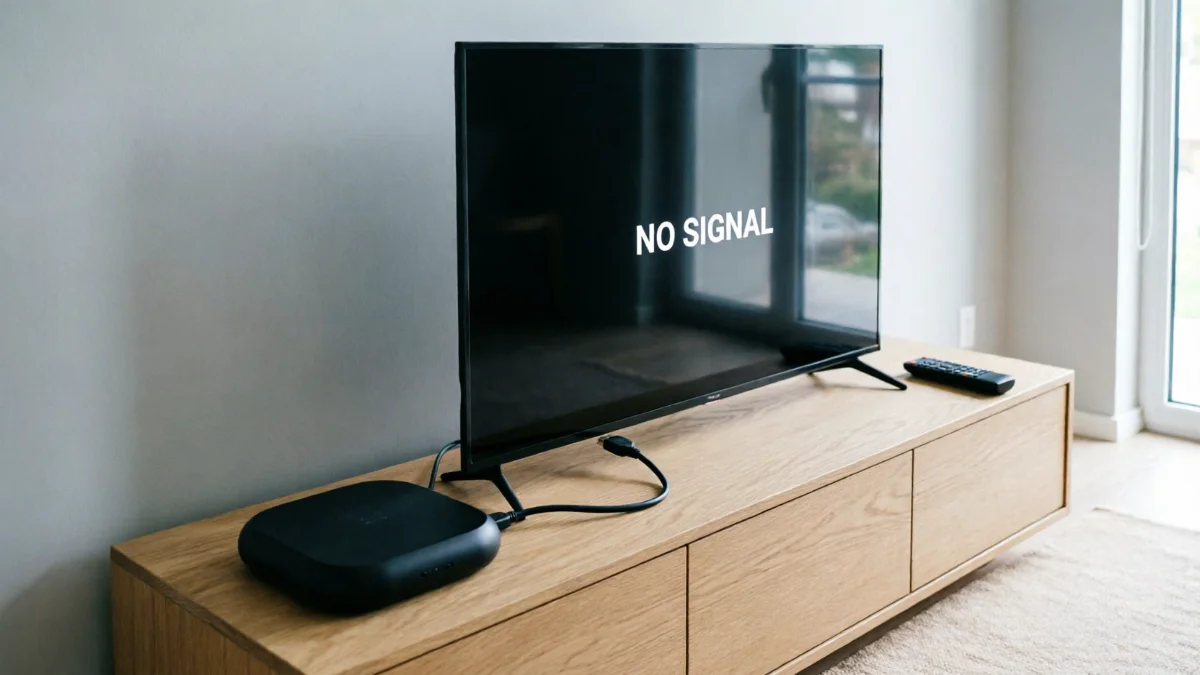
Fixing the “No Signal” Black Screen
The TV says “No Source,” or you get a vSeeBox no signal message. This is almost always a physical connection problem between the box and the TV.
- Check the HDMI cable: Unplug the HDMI cable from both the TV and the box. Blow away the dust, remove any remaining particles with a brush, and fit them back in tightly.
- Try a different port: Plug the cable into a different HDMI slot on the back of your TV.
- Swap the cable: HDMI cables break easily on the inside. Try a spare cable to see if that fixes it.
- Reset the HDMI handshake: Unplug your TV from the wall power for one minute. Plug it back in. This forces the TV and the streaming box to recognize each other again.
Test VSee.com connectivity
“Test VSee. com connectivity” normally refers to the VSee online connectivity test. It is designed for VSee video-call services, not as a general test for every vSeeBox streaming app. To use it:
- Open the VSee connectivity test in a browser.
- Run the diagnostic.
- Check whether the required service and port 443 are reachable.
- If access fails, review your firewall, VPN, DNS, or router restrictions.
VSee explains that a firewall can stop its software from communicating with VSee servers. Its network test also checks packet loss, round-trip time, and jitter, which can reveal connection-quality problems.
A successful test does not confirm that a vSeeBox app is available. It only shows whether the VSee services tested by that page can be reached from your network.
Simple problem-and-solution at Place
| Problem | Likely cause | Best first step |
|---|---|---|
| vSeeBox not working today | Temporary network, app, or device fault | Restart the box and router |
| vSeeBox not working after update | App cache or update conflict | Restart and clear the affected app cache |
| vSeeBox remote not working | Weak batteries or lost pairing | Install new batteries and pair again |
| vSeeBox buffering issues | Unstable Wi-Fi or busy network | Try Ethernet or another network |
| vSeeBox no signal | Wrong input or loose HDMI cable | Select the correct HDMI source |
| vSeeBox freezing | Heat, storage, app, or network problem | Cool the box and restart it |
When to Call Support
If you have tried clearing the cache, checking your internet, resetting the remote, and swapping the HDMI cable, and the box is still dead, you might have a hardware failure. At this point, reach out to vSee customer support. Have your account number ready, and they can help you set up a replacement.
Keep these steps handy, and you will spend less time troubleshooting and more time actually watching your shows. for more tech update.
Final Thoughts
Most issues with vSeeBox stem from connection, display, remote, overheating, or app-related problems. If a ‘No Signal’ message appears, check the HDMI input and cable; for buffering issues, use Ethernet or an alternative network; and if the remote stops working, replace it and re-pair it. Perform a factory reset only when other troubleshooting methods fail, and be sure to back up important data before doing so.